
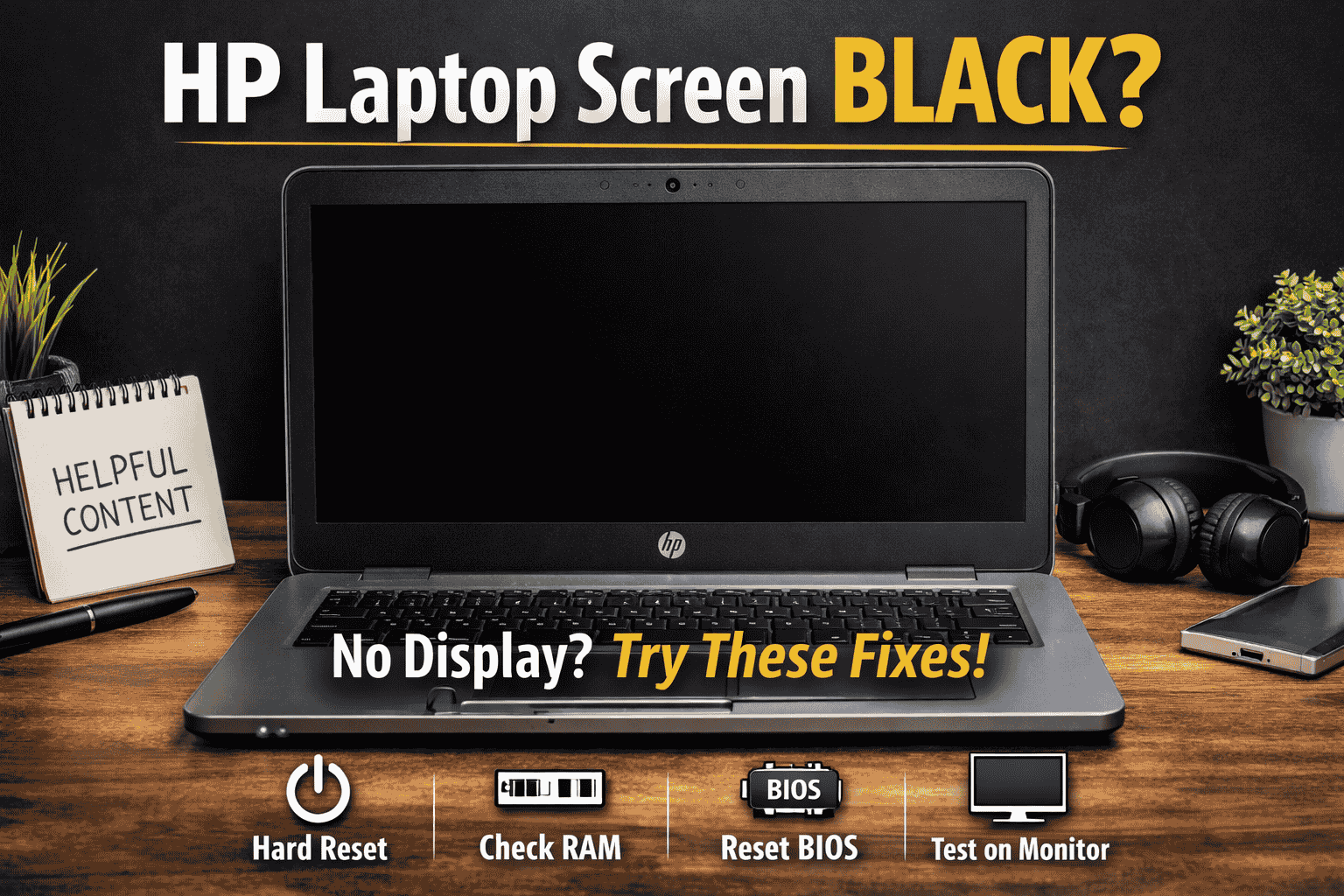
Is your HP laptop screen black even though the power light is on and the fan is running? You press the power button, but there’s no HP logo, no display, and nothing happens.
If your HP laptop screen black issue happens suddenly, don’t panic — most cases are fixable at home.
Don’t panic.
An HP laptop’s black screen on startup is a common issue. In many cases, it’s caused by minor software glitches, RAM problems, display errors, or BIOS issues — not hardware failure.
In this complete troubleshooting guide, I’ll show you step-by-step solutions to fix the HP laptop no display issue at home, even if you’re not a tech expert.
Table of Contents
- Quick Fix Summary
- Common Causes of a Black HP Laptop Screen
- Step-by-Step Solutions
- Advanced BIOS & Hardware Fixes
- Expert Tips
- Common Mistakes to Avoid
- Tools You May Need
- FAQs
- Final Thoughts
Quick Answer
How do I fix an HP laptop screen black issue?
To fix an HP laptop screen black problem:
- Perform a hard reset
- Check the external monitor output
- Reseat or clean RAM
- Reset BIOS
- Update or recover BIOS
- Check for motherboard or display failure
Most black screen issues are caused by RAM, BIOS corruption, or display connection problems.
Common Causes of a Black HP Laptop Screen
Before fixing the issue, let’s understand why it happens.
| Loose or faulty RAM | Most common cause |
| BIOS corruption | Failed update or power interruption |
| Graphics driver failure | After Windows update |
| Display panel issue | Screen damaged but system running |
| Motherboard problem | Rare but serious |
Understanding the cause helps you apply the correct fix.
Step-by-Step Solutions to Fix an HP Laptop Black Screen
1️⃣ Perform a Hard Reset (Power Drain Method)
This is the easiest and most effective first step.
Steps:
- Turn off the laptop
- Disconnect charger
- Remove battery (if removable)
- Press and hold the power button for 30 seconds
- Reconnect charger
- Turn it on
This clears residual electrical charge and resets hardware states.
2️⃣ Check If It’s a Display Problem
Sometimes your laptop works — but the screen doesn’t.
Try This:
- Connect the laptop to the external monitor via HDMI
- Press: Windows + P
- Select “Duplicate” or “Second screen only”
If the external display works, → Your laptop screen may be faulty.
3️⃣ Reseat or Clean the RAM (Very Effective Fix)
If your HP laptop’s black screen has no logo, RAM is often the culprit.
Steps:
- Open the back panel
- Remove the RAM stick
- Clean gold connectors gently
- Reinsert properly
- Try turning on
If you have two RAM sticks:
- Test one at a time
This fixes most HP laptop no display issues.
4️⃣ Reset BIOS
A corrupted BIOS can cause the HP laptop screen not to turn on properly.
Steps:
- Turn off the laptop
- Press and hold:
Windows + B - While holding, press the Power button
- Release after 3 seconds
This may trigger BIOS recovery mode.
5️⃣ Check Brightness & Graphics Reset
Sometimes the screen is just dim.
Press:
Windows + Ctrl + Shift + B
This resets the graphics driver.
Also:
- Increase brightness using keyboard keys.
6️⃣ Remove External Devices
Disconnect:
- USB drives
- Mouse
- External keyboard
- SD cards
Then restart.
Sometimes boot conflicts cause a black screen.
Advanced Troubleshooting (If Basic Fixes Fail)
BIOS Update (Careful Step)
If the system boots occasionally:
- Visit the official HP Support website
- Enter laptop model
- Download the latest BIOS
- Install carefully
⚠ Do not interrupt BIOS update.
Check for Motherboard Issue
Signs of motherboard failure:
- Caps Lock is blinking continuously
- Beep codes
- Burn smell
If yes, visit the technician.
Expert Tips (From Repair Experience)
✔ Always test with an external monitor first
✔ RAM cleaning fixes 60% of cases
✔ Avoid force shutdown during Windows updates
✔ Use the original charger only
✔ Keep BIOS updated
Common Mistakes to Avoid
❌ Immediately replacing the screen
❌ Ignoring blinking LED error codes
❌ Updating BIOS without stable power
❌ Opening the motherboard without knowledge
Recommended Tools
- Precision screwdriver kit
- Compressed air
- External monitor
- USB recovery drive
For official recovery steps, refer to HP’s support documentation on their official website.
FAQs – HP Laptop Screen Black
1. Why is my HP laptop screen black, but the power light is on?
Most likely RAM issue, display failure, or BIOS corruption.
2. How do I fix the HP laptop black screen no logo?
Perform a hard reset and reseat RAM. If the issue persists, reset the BIOS.
3. Can a virus cause a black HP laptop screen?
Rarely. But corrupted Windows updates can cause a black screen after login.
4. Does a black screen mean the motherboard is dead?
Not always. In most cases, it’s RAM or BIOS.
5. How much does it cost to fix an HP laptop with no display issue?
RAM cleaning: Free
Screen replacement: $50–$120
Motherboard repair: $150+
Conclusion
An HP laptop screen black problem may look serious, but in most cases, it’s fixable at home.
Start with simple solutions like a hard reset and RAM cleaning before replacing hardware. Most users fix the issue within 30 minutes.
If your HP laptop screen black problem still continues, professional repair may be required.
If none of the steps works, then consider professional repair.
🔹 1. HP Official Support
Microsoft also provides an official guide for Windows black screen issues.
👉 Found this guide helpful? Share it with someone facing the same issue.
👉 Visit TechByAbs.com for more laptop repair and BIOS troubleshooting guides.