
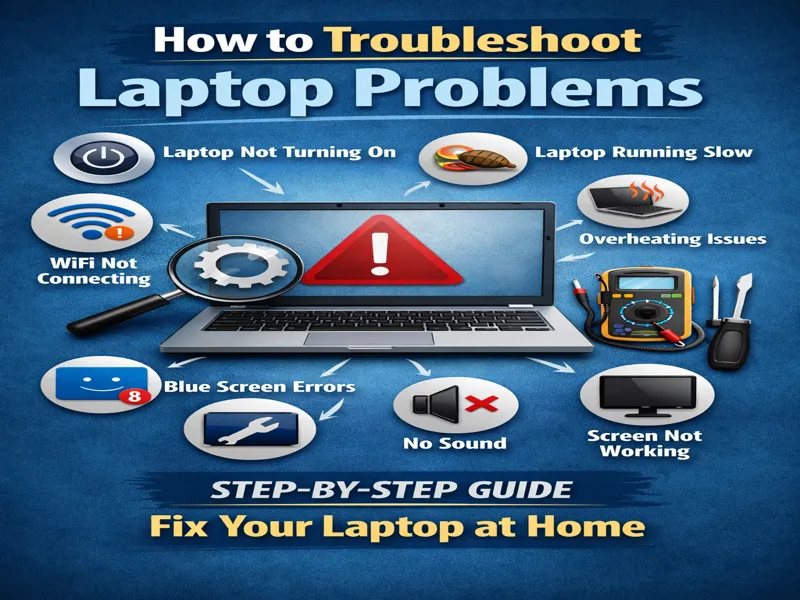
Learn how to troubleshoot a laptop that is running slowly, won’t turn on, is overheating, or has internet connectivity issues. Don’t worry! In this comprehensive guide, you’ll learn step-by-step troubleshooting methods you can do at home without being a tech expert. This guide is perfect for beginners and covers Windows laptops from brands such as HP, Dell, Lenovo, and Asus.
Quick Answer: How to Troubleshoot a Laptop
To troubleshoot your laptop effectively:
Restart your laptop
Check the power supply and battery
Run the built-in Windows troubleshooter (Microsoft Support)
Update drivers
Scan for viruses (Windows Security Guide)
Check storage space
Reset or reinstall Windows (if needed)
Now, let’s go through each problem in detail…
Table of Contents
Toggle1️⃣ How to Troubleshoot a Laptop Not Turning On
This is one of the most common problems.
✔ Check Power Adapter
- Make sure the charger is properly connected
- Try another power socket
- Check if the charging light is ON
✔ Remove Battery (If Removable)
- Remove battery
- Press the power button for 20 seconds
- Reinsert the battery and try again
✔ Hard Reset Method
- Disconnect charger
- Hold the power button for 30 seconds
- Reconnect and start the laptop
- If it’s still not turning on, it could be a motherboard or RAM issue.
2️⃣How to Troubleshoot a Laptop Running Slow
If your laptop is very slow, follow these steps:
✔ Check Startup Programs
Press:
Ctrl + Shift + Esc
Open Task Manager → Disable unnecessary startup apps.
✔ Free Disk Space
- Delete temporary files
- Empty Recycle Bin
- Uninstall unused programs
✔ Upgrade RAM (If Possible)
Upgrading from 4GB to 8GB RAM can greatly improve speed.
✔ Scan for Viruses
Use Windows Security:
Settings → Privacy & Security → Windows Security → Virus & Threat Protection
Settings → Privacy & Security → Windows Security → Virus & Threat Protection
3️⃣ How to Troubleshoot Laptop Overheating Issues
Overheating can cause your laptop to slow down or shut off unexpectedly.
✔ Clean Dust
- Open the back panel.
- Clean the fan using compressed air.
✔ Use Cooling Pad
Cooling pads improve airflow and reduce heat.
✔ Check CPU Usage
Open Task Manager → Check if any program uses 100% CPU.
4️⃣ How to Troubleshoot Laptop WiFi Not Connecting
Turn off the router for 2 minutes
✔ Forget and Reconnect WiFi
- Go to WiFi settings
- Forget network
- Reconnect
✔ Update Network Drivers
Device Manager → Network Adapter → Update Driver
5️⃣ How to Troubleshoot Laptop Blue Screen Errors
A blue screen usually indicates that the system has crashed.
✔ Restart System
Sometimes it is just a temporary glitch.
✔ Update Windows
Settings → Windows Update → Check for Updates
✔ Check RAM
Faulty RAM can cause blue screen errors.
6️⃣ How to Troubleshoot a Laptop Screen Not Working
Increase the brightness using the keyboard.
✔ Connect External Monitor
If external works → laptop screen issue.
✔ Restart Graphics Driver
Press:
Windows + Ctrl + Shift + B
7️⃣ How to Troubleshoot Laptop Sound Problems
Make sure the laptop is not muted.
✔ Update Audio Driver
Device Manager → Sound → Update Driver
✔ Set Correct Output Device
Right-click the speaker icon and select Sound Settings.
8️⃣ Windows Built-in Troubleshooter
Windows has an automatic troubleshooting tool:
Go to:
Settings → System → Troubleshoot → Other troubleshooters
Settings → System → Troubleshoot → Other troubleshooters
Run troubleshooter for:
- Internet
- Audio
- Windows Update
- Bluetooth
Advanced Troubleshooting (If Problem Still Exists)
If nothing works:
✔ System Restore
Restore the laptop to a previous working date.
✔ Reset Windows
Settings → Recovery → Reset this PC
Choose:
- Keep my files
OR - Remove everything
- You can also refer to the official Windows troubleshooting guide on Microsoft Support for detailed instructions.
When to Visit the Technician?
You should visit a repair expert if:
- The laptop smells burnt
- Screen cracked
- Motherboard issue
- Water damage
Frequently Asked Questions (FAQ)
❓ How do I troubleshoot my laptop at home?
Start with restarting, checking the charger, freeing storage, updating drivers, and running the Windows troubleshooter.
❓ Why is my laptop suddenly slow?
Possible reasons:
- Virus infection
- Full storage
- Too many startup programs
- Overheating
❓ How do I fix a laptop not turning on?
Check the charger, perform a hard reset, test the battery, or inspect RAM.
❓ Can I fix laptop problems myself?
Yes, most software-related issues can be fixed at home.
Final Thoughts
Learning how to troubleshoot laptop problems can save you time and money. Most common issues, such as slow performance, Wi-Fi problems, overheating, or startup errors, can be easily fixed by following a few simple steps.
Before going to a technician, always try basic troubleshooting first.
Well don