
HP Laptop Black Screen But Running – 7 Easy Fixes
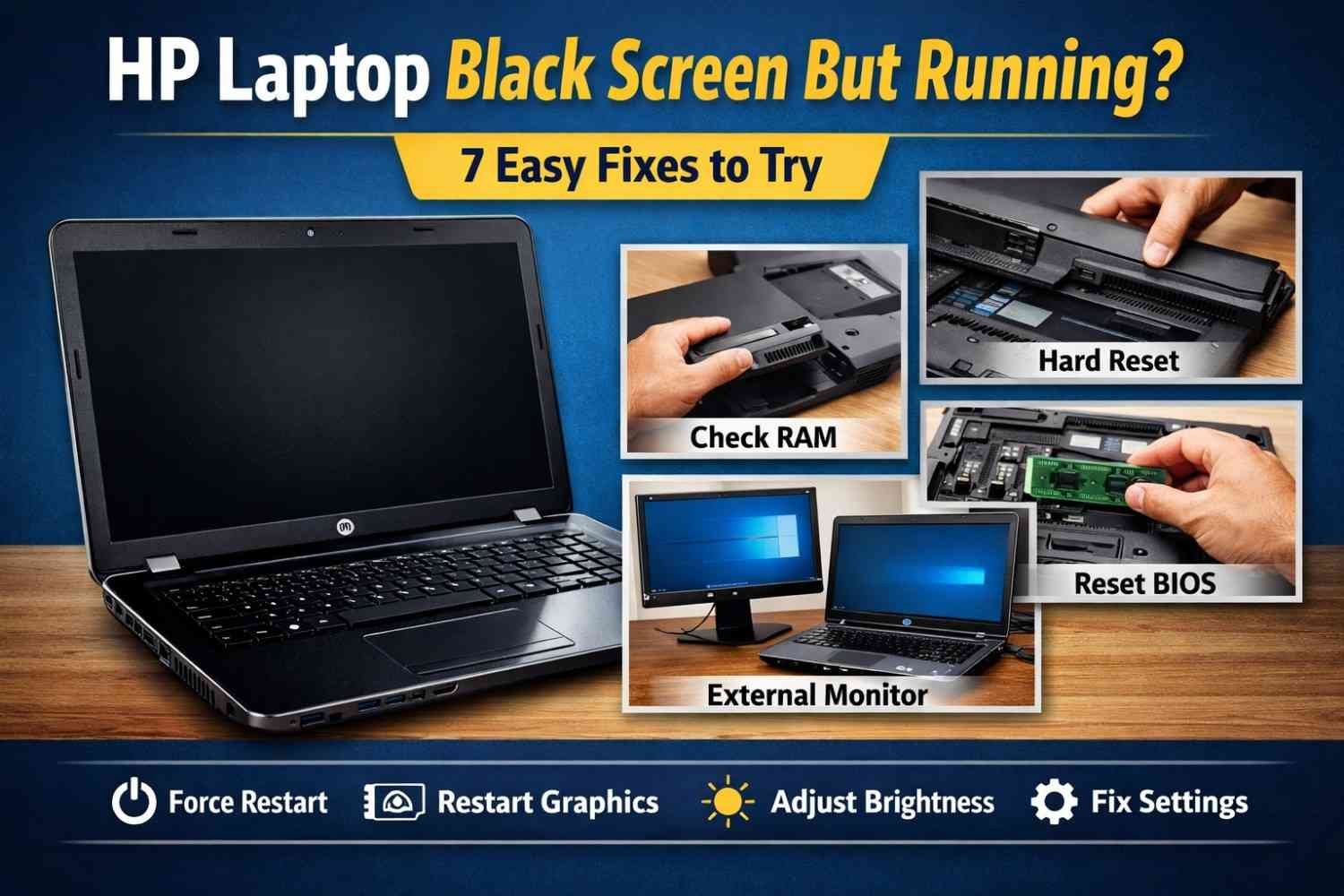 If your hp laptop black screen but running, you are not alone. Many users experience a situation where the laptop powers on, the fan runs, and the keyboard lights up, but the screen remains completely black.
This problem can happen because of display driver errors, RAM issues, BIOS glitches, or even hardware faults.
The good news is that in most cases, the issue can be fixed without replacing your laptop or visiting a repair shop.
In this complete guide on TechByAbs, you will learn:
- Why is your HP laptop screen black, but the power is on
- Step-by-step troubleshooting solutions
- Expert tips used by technicians
- Tools that can help diagnose the issue
Let’s start with the most common causes.
Why Your HP Laptop Is Running But the Screen Is Black
Before fixing the issue, it’s important to understand what may cause it.
Here are the most common reasons:
| Cause | Description |
|---|---|
| Display Driver Issue | Corrupted or outdated drivers may stop the display from loading |
| RAM Problem | Loose or faulty RAM can prevent the screen from displaying |
| BIOS Error | Incorrect BIOS settings may block display output |
| Windows Update Bug | Sometimes updates cause screen loading errors |
| External Display Conflict | Laptop may be sending display to another monitor |
| Hardware Damage | Screen cable or LCD panel may be damaged |
Most of the time, the problem is software-related and easy to fix.
Fix 1 – Force Restart Your HP Laptop
A simple restart can sometimes resolve temporary system glitches.
Steps
- Press and hold the Power button for 10–15 seconds
- Wait until the laptop completely shuts down
- Disconnect the charger
- Remove external devices like:
- USB drives
- External monitors
- Mouse or keyboard
- Turn the laptop on again
If the issue was temporary, the screen should display normally.
Fix 2 – Perform a Hard Reset
A hard reset clears power from internal components and fixes many display problems.
Steps
- Turn off the laptop
- Remove the battery (if removable)
- Disconnect the power adapter
- Press and hold the power button for 20 seconds
- Reconnect the charger
- Turn the laptop back on
Many HP users fix the hp laptop screen black but power on problem using this method.
Fix 3 – Adjust Screen Brightness
Sometimes the display is not black — it’s simply too dim.
Try increasing brightness using:
Keyboard shortcut
Fn + Brightness Up Key
Usually, the brightness key looks like a sun icon.
Fix 4 – Restart Graphics Driver
Windows includes a quick shortcut to restart display drivers.
Keyboard Shortcut
Press:
Windows + Ctrl + Shift + B
The screen may flicker, and the system will reset the graphics driver.
This is a very effective fix for Windows 11 display bugs.
You can download the latest drivers from the official Windows Update page.
Fix 5 – Connect an External Monitor
If your hp laptop turns on but has no display, the internal screen may be the problem.
Steps
- Connect an external monitor or TV
- Use an HDMI cable
- Press:
Windows + P
Then choose Duplicate Screen.
If the external monitor works, the issue is likely LCD screen or cable damage.
Fix 6 – Reseat the RAM
Faulty or loose RAM is another common reason for hp laptop black screen after login.
Steps
- Turn off the laptop
- Remove the power adapter
- Open the RAM panel
- Remove the RAM stick
- Clean it gently
- Insert it again firmly
Then, power on the laptop.
Fix 7 – Reset BIOS Settings
Incorrect BIOS settings can stop the display from initializing.
Steps
- Turn on the laptop
- Press F10 repeatedly
- Enter BIOS Setup
- Select Restore Defaults
- Save and restart
This can fix many boot display issues.
Expert Technician Tips
Professional repair technicians often check these additional points:
- Update graphics drivers
- Scan Windows for malware
- Run Windows Startup Repair
- Update BIOS firmware
- Check the laptop display cable
These advanced steps help resolve deeper issues.
Tools That Can Help Diagnose Laptop Problems
These tools help detect software problems causing display issues.
| Tool | Purpose |
|---|---|
| Windows Device Manager | Check driver problems |
| HP Support Assistant | Detect hardware errors |
| Windows Memory Diagnostic | Test RAM health |
You can download HP Support Assistant from the official HP website.
Suggested external authority link:
- HP official support page
- Microsoft Windows troubleshooting guide
Common Mistakes to Avoid
Many users accidentally make the problem worse.
Avoid these mistakes:
- Force restarting repeatedly
- Updating BIOS incorrectly
- Opening a laptop without proper tools
- Ignoring overheating issues
Always try basic troubleshooting first.
When to Visit a Laptop Repair Technician
If none of the fixes work, the issue may be hardware-related.
Possible hardware problems include:
- Broken LCD screen
- Damaged display cable
- Faulty GPU chip
- Motherboard problem
In that case, professional repair may be required.
Conclusion
Facing the hp laptop black screen but running issue can be frustrating, but in most cases, it can be fixed with simple troubleshooting steps.
Start with basic fixes like:
- Force restart
- Hard reset
- Restarting graphics drivers
If the problem continues, check RAM, BIOS settings, or connect an external monitor.
For more troubleshooting guides, laptop fixes, and tech tutorials, visit TechByAbs, where we regularly share practical solutions for everyday tech problems
Featured Snippet Optimized Paragraph
If your HP laptop is running but the screen is black, the issue is usually caused by display driver errors, RAM problems, BIOS glitches, or screen hardware failure. You can fix it by performing a hard reset, restarting graphics drivers, checking RAM, or connecting an external monitor.
FAQ Section
Why is my HP laptop on, but the screen is black?
This usually happens due to display driver errors, RAM problems, BIOS settings, or damaged screen hardware.
How do I fix HP laptop black screen in Windows 11?
Try these fixes:
- Hard reset the laptop
- Restart graphics driver
- Update display drivers
- Reset BIOS
Can RAM cause a black screen on an HP laptop?
Yes. Loose or faulty RAM can stop the laptop from displaying anything on the screen.
How do I restart the graphics driver?
Press:
Windows + Ctrl + Shift + B
This resets the display driver.
When should I replace my laptop screen?
If your laptop works on an external monitor but not on its screen, the internal display may need replacement.