
WiFi Connected but No Internet Windows 11? 11 Easy Fixes
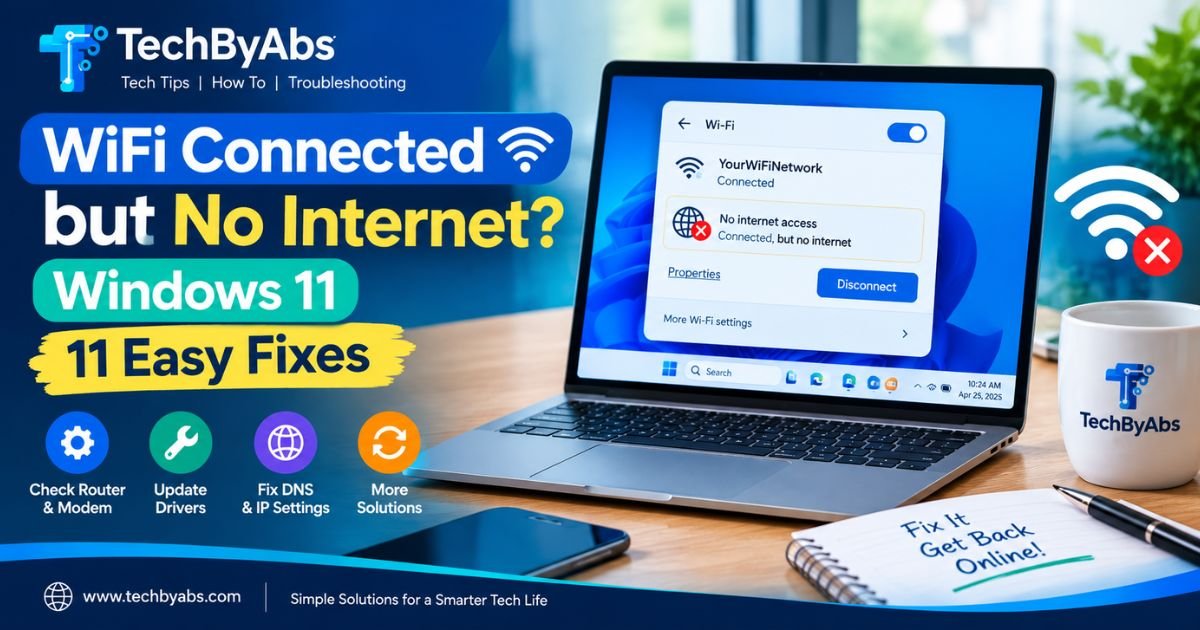 Seeing WiFi connected but no internet on Windows 11 is one of those problems that can make you think your WiFi is working when it actually isn’t.
Your laptop may show full WiFi bars, Windows may say you’re connected to your wireless network, but websites won’t open, apps can’t connect, and services such as OneDrive or Microsoft Store may stop working.
The important thing is to understand that WiFi and internet access are not exactly the same thing. Your computer can successfully connect to your router while the router itself has lost its connection to your internet service provider.
In this guide, we’ll go from the quickest fixes to more advanced solutions, including checking the router, reconnecting to WiFi, resetting IP and DNS settings, updating the network driver, and using Windows 11’s Network Reset.
Why Is WiFi Connected but No Internet Windows 11?
When Windows connects to your WiFi network but cannot reach the internet, there can be several causes.
Common causes include:
- Your router has lost its internet connection
- A temporary Windows network problem
- Incorrect IP configuration
- DNS problems
- A faulty or outdated WiFi driver
- VPN or proxy interference
- Windows network services not working correctly
- Weak or unstable wireless connectivity
- Problems with your ISP
- A recent Windows or driver update
Microsoft also explains that a Windows PC can be connected to the local WiFi network while still having no internet access.
The fastest way to find the cause is to determine whether the problem affects only your Windows 11 PC or every device connected to the same WiFi network.
1. Check Another Device on the Same WiFi
Before changing Windows settings, check your phone or another computer.
Connect another device to the same WiFi network and try opening a website.
If other devices also have no internet
The problem is probably not your Windows 11 computer.
Your router, modem, or ISP may be responsible.
If other devices work normally
Then your internet connection is probably fine, and the problem is more likely specific to your Windows 11 computer.
This simple test can save you from changing dozens of Windows settings unnecessarily.
Microsoft recommends testing the same network on another device as part of its WiFi troubleshooting process.
2. Restart Your Router and Modem
If every device connected to the network has no internet, restart your networking equipment.
Turn off your router and modem.
If they are separate devices:
- Unplug the modem.
- Unplug the router.
- Wait about 30 seconds.
- Plug the modem back in.
- Wait until its connection lights stabilize.
- Plug the router back in.
- Wait a few minutes.
- Connect your Windows 11 PC again.
If you have a modem-router combination device, you only need to restart that single device.
Microsoft recommends restarting the modem and wireless router because it can establish a fresh connection with your ISP.
Don’t press the Reset button on the router unless you intentionally want to restore factory settings. A normal power restart is what you want here.
3. Forget the WiFi Network and Connect Again
If other devices have internet access but your Windows 11 PC doesn’t, forget the wireless network and reconnect.
Go to:
Settings → Network & internet → Wi-Fi → Manage known networks
Find your WiFi network and select:
Forget
Then return to the WiFi list, select your network, and enter the password again.
This creates a fresh connection instead of relying on the existing saved network configuration.
Microsoft includes forgetting and reconnecting to the WiFi network among its recommended troubleshooting steps.
4. Restart WiFi on Windows 11
This is simple, but it can solve temporary connection problems.
Click the network icon on the Windows 11 taskbar.
Turn WiFi off.
Wait several seconds.
Turn it back on and reconnect to your network.
You can also enable and disable Airplane mode briefly, then turn Airplane mode off again.
If the WiFi connection returns but Windows still says there is no internet, continue with the next steps.
5. Run the Windows 11 Network Troubleshooter
Windows 11 includes automated troubleshooting through the Get Help app.
Open Windows Search and type:
Get Help
Then search for:
Connect to network and internet
Follow the diagnostic instructions.
Microsoft currently recommends the automated Network and Internet troubleshooter in the Get Help app for Windows 11 connectivity problems.
This is worth trying before you start changing advanced network settings.
6. Reset Your IP Address and DNS Cache
If you’re still experiencing WiFi connected but no internet on Windows 11, resetting your network configuration can help.
Open Command Prompt as administrator.
Run these commands one at a time:
netsh winsock reset
netsh int ip reset
ipconfig /release
ipconfig /renew
ipconfig /flushdns
Press Enter after each command.
Then restart your computer.
What do these commands do?
netsh winsock resetresets the Windows network socket configuration.netsh int ip resetresets TCP/IP configuration.ipconfig /releasereleases the current IP address.ipconfig /renewrequests a new IP address.ipconfig /flushdnsclears the DNS resolver cache.
Microsoft recommends these commands as part of its Windows WiFi troubleshooting process.
Microsoft’s documentation also confirms that ipconfig /flushdns clears the DNS resolver cache and that ipconfig /release and /renew manage DHCP-assigned IP configuration.
These commands reset network components, renew your IP address, and clear the DNS cache. Microsoft also recommends these commands as part of its Windows Wi-Fi troubleshooting process.
7. Check Whether Windows Has a Bad IP Address
Your computer normally receives an IP address from your router.
To check it, open Command Prompt and run:
ipconfig
Look for the Wireless LAN adapter Wi-Fi section.
Check the IPv4 address.
If Windows has an address beginning with:
169.254.x.x
that can indicate that Windows wasn’t able to obtain a normal IP address from the router.
In that situation, restart the router and PC, then try the following:
ipconfig /release
ipconfig /renew
If the problem continues, your router’s DHCP service or the Windows network adapter may need further troubleshooting.
8. Temporarily Disable VPN or Proxy Settings
A VPN or manually configured proxy can interfere with internet access.
If you recently installed a VPN, security application, or proxy configuration, temporarily disable it and test the connection again.
To check proxy settings:
Settings → Network & internet → Proxy
Review any manually configured proxy settings.
If you don’t intentionally use a proxy, make sure unnecessary manual proxy configuration isn’t enabled.
Also temporarily disconnect from your VPN and try opening a website.
If the internet works immediately after disconnecting the VPN, the VPN configuration may be the real cause rather than your WiFi connection.
9. Update or Reinstall the WiFi Driver
A damaged or outdated network driver can cause Windows 11 internet problems.
Press:
Windows + X → Device Manager
Then expand:
Network adapters
Find your wireless adapter.
Right-click it and select:
Update driver → Search automatically for drivers
Restart your PC after updating.
If the problem started after a recent driver update, you may also need to consider rolling back the driver.
If Windows cannot find a suitable driver, download the correct WiFi driver from your laptop or PC manufacturer’s official support website.
Avoid downloading network drivers from random driver websites.
Microsoft also recommends uninstalling the network adapter driver and restarting Windows when normal troubleshooting doesn’t resolve a connection problem. Windows may reinstall the adapter driver automatically after the restart.
10. Test Your Connection With an Ethernet Cable
This is one of the best diagnostic tests if you have access to an Ethernet cable.
Connect your Windows 11 PC directly to the router.
Then test the internet.
Ethernet works, but WiFi doesn’t
This strongly suggests the problem is related to:
- WiFi adapter
- WiFi driver
- Wireless settings
- Wireless interference
- Router WiFi configuration
Ethernet also has no internet
The problem may be related to:
- Router
- Modem
- ISP
- Windows network configuration
This test helps separate a WiFi-specific problem from a broader internet connection problem.
11. Use Windows 11 Network Reset
If you’ve tried everything above and WiFi connected but no internet on Windows 11 still appears, Network Reset is a more aggressive option.
Go to:
Settings → Network & internet → Advanced network settings → Network reset
Select:
Reset now
Windows will restart.
Network Reset removes installed network adapters and resets their settings to their defaults. Microsoft recommends using it as a last step, rather than the first troubleshooting method.
Important
After a network reset, you may need to:
- Reconnect to your WiFi network
- Re-enter your WiFi password
- Reconfigure VPN software
- Reconfigure virtual network adapters
- Adjust other network settings
So don’t use Network Reset simply because the WiFi icon looks strange. Try the less disruptive solutions first.
WiFi Connected but No Internet Only on One Computer
If your phone, tablet, and other computers work normally on the same WiFi but your Windows 11 laptop doesn’t, focus on the laptop.
The most useful sequence is:
- Forget and reconnect to WiFi.
- Restart Windows.
- Run the Network troubleshooter.
- Reset IP and DNS.
- Disable VPN or proxy.
- Update the WiFi driver.
- Reinstall the network adapter.
- Use Network Reset as a final step.
There is little value in repeatedly restarting your router if every other device already has internet access.
WiFi Says Connected but Websites Won’t Open
Sometimes the WiFi connection is working but DNS is failing.
For example, Windows may connect to your router and receive an IP address, but domain names such as Google.com may not resolve correctly.
Try:
ipconfig /flushdns
Then restart your browser.
You can also test whether the problem is DNS-related by opening Command Prompt and running:
ping 8.8.8.8
If you receive replies but websites still won’t load, DNS may be worth investigating.
Don’t immediately change DNS settings just because one website doesn’t open. First check whether the problem affects multiple websites and applications.
WiFi Connected but No Internet After Windows Update
If the problem appeared immediately after a Windows update, the update or a related network driver may be involved.
Start by restarting the PC.
Then:
Settings → Windows Update
Check for additional updates.
Also check Device Manager → Network adapters for driver problems.
If the network stopped working immediately after a driver update, consider rolling back the network driver if Windows provides that option.
Don’t uninstall random Windows updates without identifying a connection between the update and the problem.
When the Problem Is Probably Your ISP
Sometimes Windows is not the problem at all.
If every device connected to your router shows no internet, while the WiFi connection itself remains available, check:
- Router internet/WAN light
- Modem status
- ISP outage
- Account status
- Fiber/DSL cable connection
- Mobile or ISP notifications
If your router has WiFi but no internet connection from the ISP, Windows cannot fix that.
In this situation, contact your internet provider or check its outage information using another internet connection.
Quick Troubleshooting Checklist
If you want the shortest possible path, follow this order:
| Problem | What to try first |
|---|---|
| All devices have no internet | Restart modem/router |
| Only Windows 11 has the problem | Forget and reconnect WiFi |
| WiFi connects but websites don’t load | Reset DNS/IP |
| VPN recently installed | Disconnect VPN |
| Problem started after driver update | Check/roll back driver |
| WiFi adapter has an error | Update/reinstall driver |
| Ethernet works but WiFi doesn’t | Troubleshoot WiFi adapter |
| Nothing else works | Network Reset |
| All devices fail after router restart | Contact ISP |
Frequently Asked Questions
Why does Windows 11 say WiFi connected but no internet?
Your PC may be connected successfully to the router, but the router may not have an active internet connection. Other causes include DNS problems, incorrect IP configuration, network drivers, VPNs, or Windows networking issues.
How do I fix WiFi connected but no internet on Windows 11?
Start by checking another device on the same WiFi. Then restart the router, forget and reconnect to the network, run the Windows Network troubleshooter, and reset your IP and DNS configuration if necessary.
Why does my phone have internet but my Windows 11 laptop doesn’t?
If other devices work on the same WiFi, the issue is probably specific to your Windows PC. Check the WiFi adapter, network driver, IP configuration, VPN, proxy, and Windows network settings.
Does flushing DNS fix no internet?
It can fix some DNS-related problems, but it isn’t a universal solution. The command ipconfig /flushdns clears the DNS resolver cache.
Should I use Network Reset in Windows 11?
Use Network Reset as a last resort. It removes network adapters and resets network settings, so you’ll need to reconnect and possibly reconfigure networking software afterward.
Why does my WiFi work on my phone but not my laptop?
That usually means your router and ISP are probably working, so investigate the laptop’s network adapter, driver, IP configuration, VPN, proxy, or Windows network settings.
Final Thoughts
When you see WiFi connected but no internet on Windows 11, don’t assume that your WiFi adapter is broken.
First determine whether the problem affects one device or the entire network. If every device is offline, investigate the router, modem, or ISP. If only your Windows 11 PC is affected, concentrate on Windows networking, DNS, IP configuration, drivers, and adapter settings.
For most users, the best troubleshooting order is simple: check another device, restart the router, reconnect to WiFi, run Windows’ network troubleshooter, reset IP/DNS, check VPN or proxy settings, update the WiFi driver, and only then use Network Reset.
That approach is faster and safer than immediately reinstalling Windows or changing advanced settings you don’t understand.